Health and safety action tracker for a small firm
The jobs that come out of a check, an incident or a visit from your consultant, each written down with a name and a date on it. Overdue ones are flagged until somebody completes them.
14 days free, then from £9.99 a month, with no card needed to start.

“And what did you do about it?”
Whoever asked about the accident, the failed check or the expired certificate
Finding a problem and writing it down is the easy part. The next question is whether anyone fixed it, and when.
What an action holds
An action is a job that needs doing: fix a guard, book a course, replace a sign. Press Add action and fill in:
- Title: what needs to be done. This is the only required field.
- Details: anything the person doing it needs to know.
- Priority: low, medium, high or critical.
- Due date.
- Assigned to: someone from your staff list, or nobody yet.
- Status: open, in progress or completed.
Actions are added by hand. A failed check or a new incident does not create one for you, and an action is not linked to the record it came from. Put the incident reference or the name of the check in the details so the two can be matched up later.

Where actions come from
Most actions start somewhere else in the account:
- an incident report you have set to "Action required"
- a check that came back with a No or a Fail
- a document the matrix shows as missing or expired
- a recommendation from your safety consultant, who can add actions directly if you have given them the Actions screen
In each case somebody has to decide what the job is, who does it and by when. That decision is the action. Keeping it in the same account as the incident and the check means the answer to "what did you do about it" sits one screen away from the record that raised the question.
Four tabs: open, overdue, completed and all
The Actions screen has four tabs, each with a count: Open, Overdue, Completed and All. Open includes anything marked in progress.
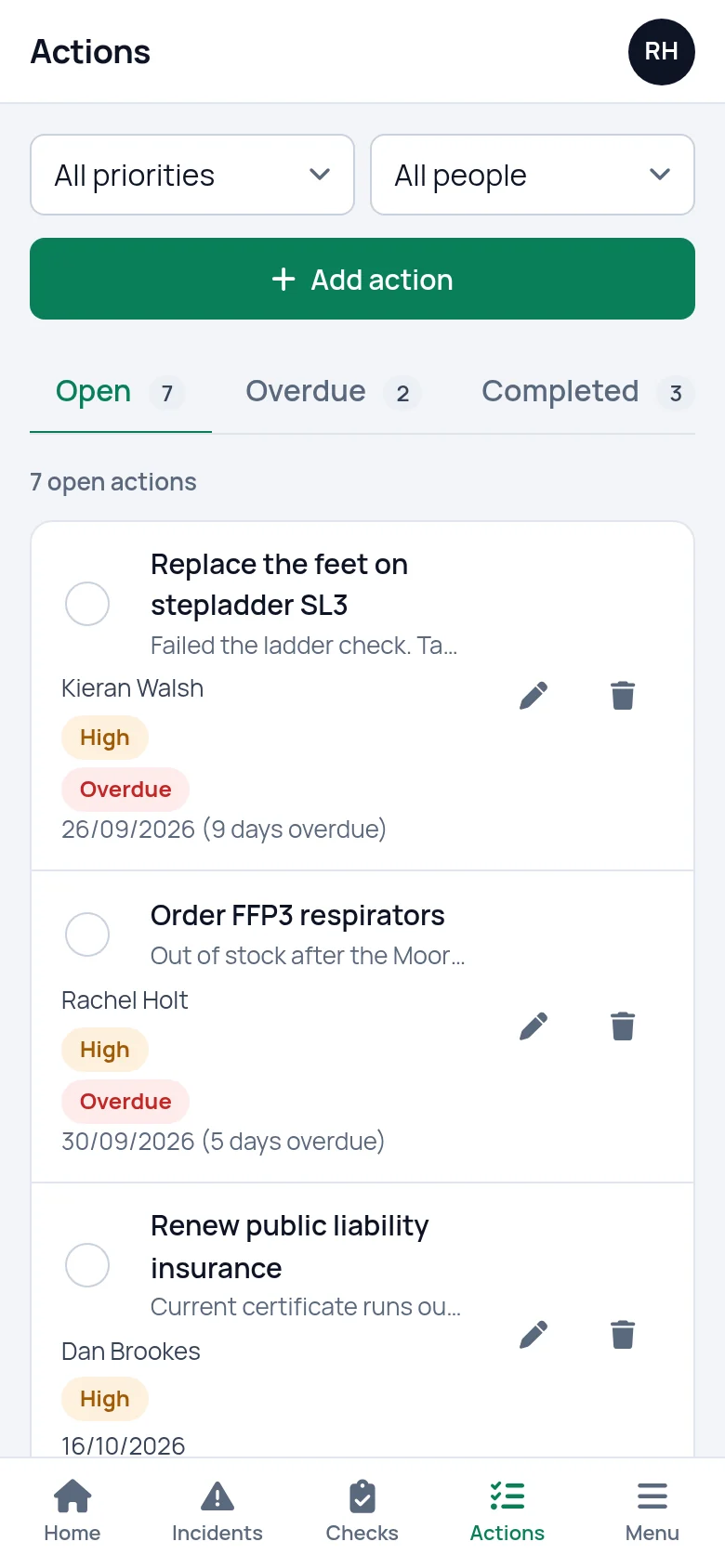
Each row shows the action, who it is assigned to, its priority and when it is due. The start of the details sits under the title, with "In progress" where that applies.
The list can be narrowed to one priority or one person, and the counts follow the filter. Choose a name and you see what that person has outstanding.
Open actions are sorted with critical first, then by due date within each priority.
- Filter by priority or by person
- A count on every tab
How overdue is shown
Overdue is not a status you set. An open action becomes overdue the day after its due date, and stops being overdue the moment it is completed. The Due column shows:
- a red Overdue badge, with the date and how many days late it is
- an amber badge for anything due today, tomorrow or within the next seven days
- the plain date for anything further off
- "No due date" where none was set
The Overdue tab lists only the late ones, highest priority first, which makes it the tab to open at the start of the week.
An action with no due date can never become overdue, so give every action a date.
Overdue actions on the dashboard
The dashboard is the first screen you see after logging in. Overdue actions are counted there under "Overdue or missing", alongside expired training and missing documents. Open actions that are not yet due appear under "Coming up". Press either line to see the actions behind the number.
The count stays until the actions are completed or given a new date.

Completing an action
Each action has a round tick box at the start of its row. Press it and the action is marked completed, with the date. It moves to the Completed tab, where the Due column shows when it was completed and when it had been due. The Completed tab also says how many were completed this month.
Completed actions are kept, so over time the list becomes the record of what was done. If one was ticked by mistake, press the tick again to reopen it.
Deleting is different: a deleted action is removed for good. Complete actions when they are done, and only delete the ones entered in error.
What it does not do
- It does not create actions automatically. A failed check or a new incident does not raise one. You add the action yourself.
- It does not tell the person an action is assigned to. No email or text is sent, and the people on your staff list do not have a login of their own to see their actions. Tell them, and check the list.
- It does not hold photos or a signature as proof that a job was done. A completed action records the date it was completed.
- It does not export the list as a PDF or a spreadsheet. The list is read on screen, on a computer or a phone.
Questions people ask
Is this corrective action software in the CAPA sense?
It is a plain action list rather than a formal corrective and preventive action system. Each action has an owner, a priority, a due date and a status, and overdue ones are flagged. There are no approval steps, root cause forms or effectiveness reviews attached to an action. It is built for a small firm that needs to see what is outstanding and who has it.
Are actions created automatically from a failed inspection or an incident?
No. Actions are added by hand on the Actions screen. When a check fails or an incident needs something fixing, add an action for it and put the incident reference or the name of the check in the details, so the action can be traced back to where it came from.
Can I assign an action to someone who does not use SafetyPro360?
Yes. Actions are assigned to people on your staff list, and they do not need a login. SafetyPro360 does not send them anything, so you tell them about the job yourself. The list then shows what each person has outstanding when you filter by their name.
What happens to completed actions?
They are kept. A completed action moves to the Completed tab with the date it was completed and the date it had been due, and it stays there unless someone deletes it. If it was ticked by mistake, pressing the tick again reopens it.
How does it decide an action is overdue?
By the due date. An action that is open or in progress becomes overdue the day after its due date. It is then shown with a red Overdue badge and the number of days late, listed on the Overdue tab and counted on the dashboard until it is completed or given a new date.
Can our safety consultant add actions for us?
Yes, if you connect them and tick Actions as one of the screens they can use. They can then add, edit and complete actions in your account. You choose which screens and sites a consultant can work on, and you can disconnect them at any time.
Have the answer ready before anyone asks.
Add your people, the training each role needs and the documents you hold. From then on, what is overdue or missing is on one screen.
14 days free, then from £9.99 a month, with no card needed to start.