
Staff and roles: the two lists everything else is built on
Every other record in SafetyPro360 hangs off the people who work for you and the roles they do. Get these two lists right and the training matrix, toolbox talks and actions all know who they are about.
14 days free, then from £9.99 a month, with no card needed to start.

What the staff list holds
A person needs a first name and a last name. Everything else is there if you want it: email, mobile, job title, department, site, start date, employee number, an emergency contact and notes.
Employment type is one of full time, part time, contractor, temporary or volunteer, so agency workers and regular subcontractors sit on the same list as your employees. If they do the work, their training matters as much as anyone's.
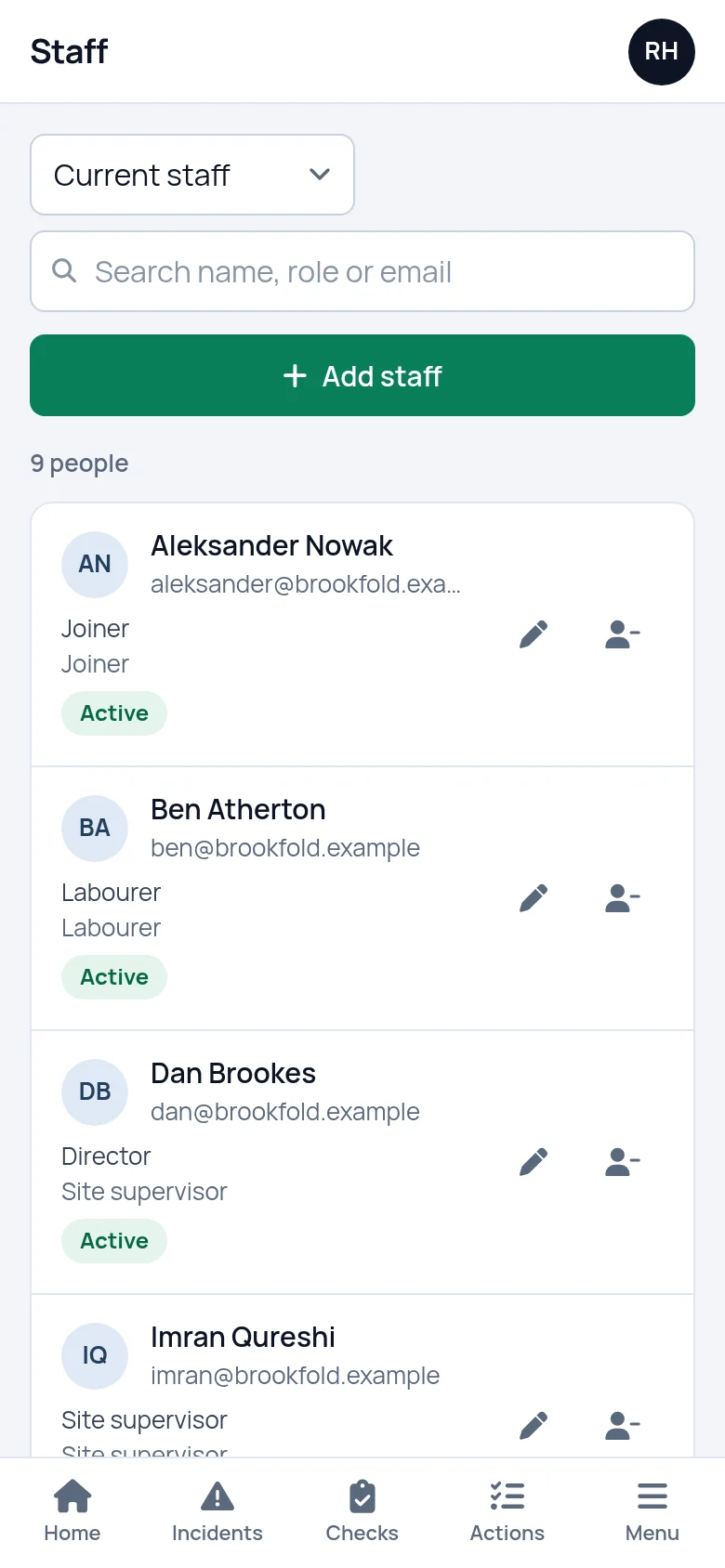
The list shows each person's job title with their roles underneath. Search it by name, role or email. If you add someone with the same name as a person already on the list, it asks before making a second entry, because that is usually a double entry.
Other screens draw on this list. A training record is filed against a person, a toolbox talk ticks people off from it, and an action is assigned to one of them. If your account has more than one site, each person belongs to a site and the list can be filtered by it.
A role is a job, not a person
A role is a job people do in your business: labourer, site supervisor, forklift driver, first aider. A small firm might have six or eight. Each gets a name and, if you like, a line of description.
Every role card shows two numbers: how many current staff hold the role and how many courses it needs. A role with courses and nobody in it is harmless. A person with no role is the one to watch, because nothing is required of them and the training matrix has no gaps to show. The dashboard lists anyone in that position under "Staff without a role".
- One role for each job in the business
- Two roles cannot share a name
- People with no role are flagged on the dashboard

What a role carries
Open a role and you get your list of training courses with a tick box beside each. Tick the ones the job needs and mark each as mandatory or optional. Mandatory courses count on the training matrix. Optional ones are shown but not chased.
This is the step that turns a list of certificates into a list of gaps. The requirement is written down once, on the role, and it applies to everyone who holds it. When a job changes, say your supervisors now need a fire marshal course, you tick one box and every supervisor's row updates.
A person can hold more than one role, and their requirements are the two added together.

Marking someone as left, and bringing them back
People are never deleted. When someone leaves you mark them as left, and the day you do it is recorded as their leaving date.
From then on they come off the current staff list, the training matrix and the lists you pick people from. Their training records, and their names on past toolbox talks, stay exactly as they were. Nobody chases them for an expired ticket or a missed talk.
Switch the list from "Current staff" to "Left" to see them, each with the date. If someone was marked by mistake, or comes back next season, one button returns them to the current list with every record they had. Editing a leaver's details does not bring them back by accident.
Adding a new starter from a phone
On a phone the staff list becomes a stack of cards with the same search and the same add button. A new starter can go on the list on their first morning, with a role ticked.
The moment they have a role, their row on the training matrix fills with every mandatory course that role requires and they have not yet done. That is their training plan, and it is on the screen before anyone has to remember to write it.
Setting it up
List your roles
Start with the jobs, not the people. Name each job in the business as a role.
Tick the training each role needs
Add your courses first, then open each role and tick them as mandatory or optional.
Add your people
Name, job title and the role or roles each person does. The rest of the details can wait.
What it does not do
- It does not give staff their own login. The staff list is a record of who works for you. Being on it does not let anyone log in or see their records.
- It does not email or text the people on the list. You can store an email address and a mobile number for each person, and nothing is ever sent to them.
- It does not record PPE issued to individuals. The PPE screen counts what is in stock. Who was given which item is something to keep on your own issue sheet.
Questions people ask
What is the difference between a job title and a role?
The job title is free text, shown under the person's name, and can be whatever is on their contract. A role is one of the jobs you have set up with required training against it. The role is what decides which training the person needs, so two people with different job titles can share a role.
Can someone have more than one role?
Yes. Tick every role the person does. A site supervisor who is also a first aider gets the training requirements of both roles on the training matrix. If a course is mandatory for one role and optional for the other, it counts as mandatory for that person.
What happens to someone's records when they leave?
They are kept. Marking a person as left takes them off the current staff list and the training matrix, and records the date. Their training records stay readable, and they remain on the attendance lists of toolbox talks they went to. You can bring them back later with everything intact.
Do people who have left count towards my plan?
No. Only current staff count. The Standard plan covers up to 10 current staff, and Pro and Business have no staff limit. Marking someone as left takes them out of the count straight away, and their records stay in the account. On Standard, bringing someone back uses a place again, so it is refused if all 10 places are taken.
Can I add contractors and agency workers?
Yes. Each person has an employment type of full time, part time, contractor, temporary or volunteer. Subcontractors and agency staff go on the same list, take the same roles and appear on the training matrix alongside your employees, so their tickets and expiry dates are tracked in the same way.
Can I delete a role?
Only when none of your current staff hold it. Take the role off those people first, on the staff screen, then delete it. A deleted role is no longer offered when you add or edit staff, and the training it required stops counting on the training matrix.
Have the answer ready before anyone asks.
Add your people, the training each role needs and the documents you hold. From then on, what is overdue or missing is on one screen.
14 days free, then from £9.99 a month, with no card needed to start.