
Training matrix software that shows who is covered and who is not
People down the side, courses across the top, and a mark in every square that matters. The staff training matrix is drawn from the records you already keep, so there is no second copy to update.
14 days free, then from £9.99 a month, with no card needed to start.

“Can I see your training records?”
An inspector, or a customer vetting you as a supplier
It tends to be asked after an accident or in the middle of a tender. The matrix is the one screen that answers it for everybody at once.
What each square tells you
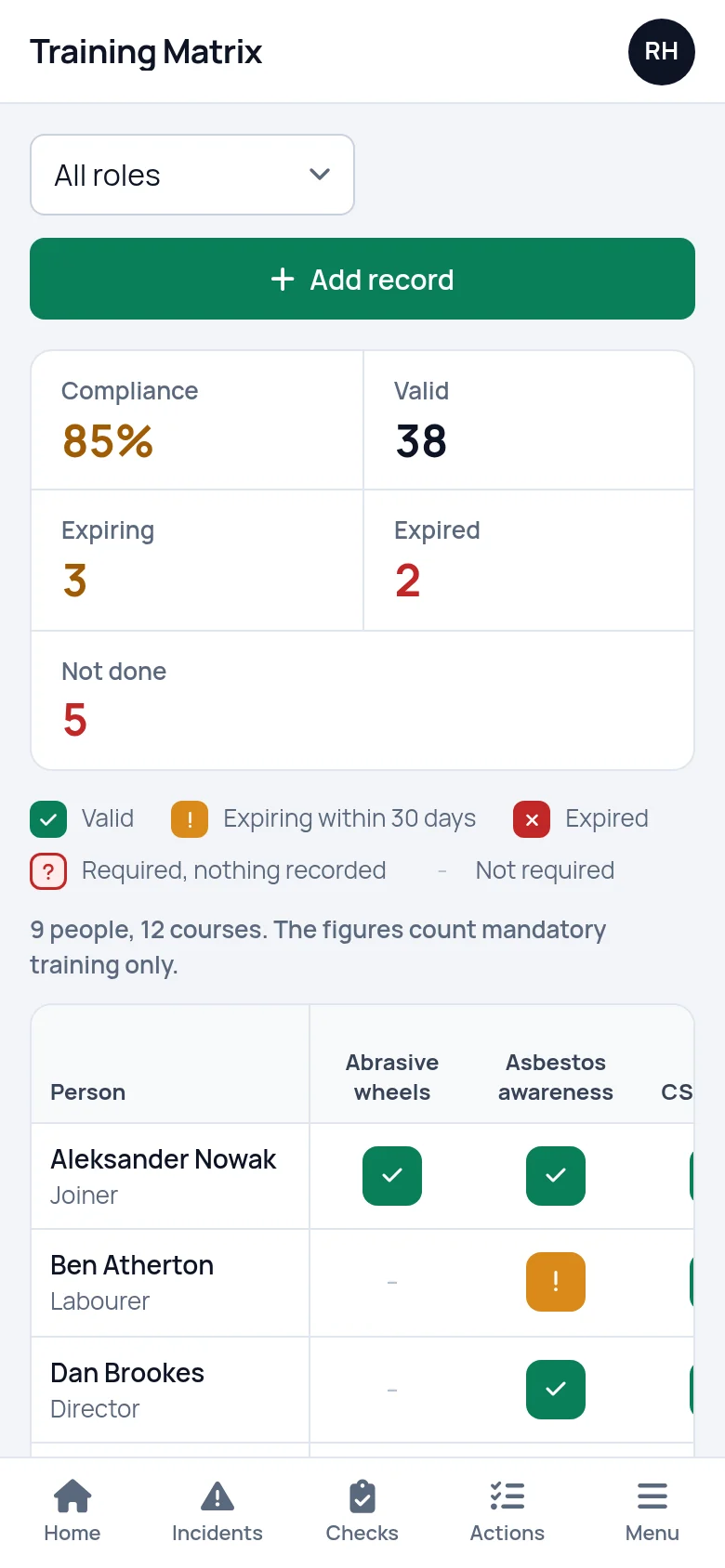
Wherever a person meets a course, the square carries one of five marks. Each has its own symbol as well as its own colour, so colour is never the only signal.
- A tick: the training is in date.
- An exclamation mark: it runs out within 30 days.
- A cross: it has expired.
- A question mark: the role requires it and nothing has been recorded.
- A dash: not required for that person.
Click or tap a square to read what is behind it, for example "Valid until 14/03/2027" or "Expired 02/09/2026". Where someone has renewed a certificate, the matrix reads the newest one.
If a person holds a certificate for a course on the matrix that their role does not call for, the square still shows it, and says so when you tap it. The matrix only has a column for a course that at least one role requires. A certificate for any other course is not on the matrix: you will find it in the training records list.
- Five states, each with its own symbol
- Tap a square to read the date behind it
- The newest certificate is the one that counts
Set the training each role needs, once
The matrix can show what is missing because you have told it what is needed. On each role you tick the courses that job calls for, and mark each one as mandatory or optional.
Give a person a role and its courses become their requirements. Someone with two roles, say labourer and first aider, gets the requirements of both. Change what a role needs and the matrix changes for every person who holds it.
A mandatory course with nothing recorded shows as a question mark. An optional course is shown when someone holds it, and is not counted as a gap when they do not.
This is what makes a new starter visible. Add them, give them a role, and their row fills with question marks on the first day. That row is their training plan.
- Mandatory or optional, course by course
- A person can hold more than one role

Say how long each course lasts
Each course has a name, a provider, a category and the number of months it is valid for. Leave the months blank and the course never expires.
That number is what turns a completion date into an expiry date. Record a certificate completed on 12 May 2026 against a course you have set to 36 months, and the matrix shows it as valid until 12 May 2029, turning amber 30 days before.
A course becomes a column on the matrix as soon as one role needs it.

The figures above the grid
Five figures sit above the matrix: compliance as a percentage, then how many required squares are valid, expiring, expired and not done.
The percentage is the share of mandatory training that is in date, for the people on the screen. A certificate that is about to expire still counts, because it is still in date. Optional courses are left out of the sum. With no filter on, it is the same figure your dashboard shows. On a wide monitor each row also carries that person's own tally, such as "3 of 4".
It is a count against the requirements you set. It is not a measure of whether you meet the law. If a role asks for the wrong training, the figure will be wrong with it, which is why the requirements should come from your risk assessments. Our guide to mandatory training covers what the law expects of every employer.
Filtered, and on a phone
Choose a role to see only the people who hold it. If your account has more than one site, a second filter narrows the matrix to the people based at one site.
On a phone the names stay fixed on the left while the courses scroll sideways. Tapping a square shows the person, the course and the date in words.
Only current staff appear. When someone leaves they come off the matrix, and their training records are kept.
Setting it up
The order matters: courses first, so there is something to tick on each role.
Add your courses
Name each one and say how many months it lasts. Leave the months blank for training that never expires.
Add your roles
One for each job in the business. Tick the courses it needs and mark each as mandatory or optional.
Add your people
Give each person the role or roles they do. The matrix now shows a question mark for every mandatory course they need.
Enter the certificates they hold
Person, course and completion date. Question marks turn into ticks, and whatever is left is your list of training to book.
What it does not do
- It does not send reminders. There is no email or text when a certificate is about to run out. The amber squares and the dashboard list are waiting when you log in, so pick a day each month to look.
- It does not export a PDF or a report. To show the matrix to an inspector or a customer, open it on a screen in front of them.
- It does not give staff their own login. The matrix is kept by whoever runs the account. People cannot log in to see their own row.
Questions people ask
What is the difference between the training matrix and training records?
Training records are the list of certificates: who did which course, when, and when it expires. The training matrix is the picture drawn from them, with every current member of staff set against every course a role requires. You add and edit certificates in training records, and the matrix updates itself.
How is the compliance percentage worked out?
It is the number of mandatory requirements that are in date, divided by the number of mandatory requirements, for the current staff on the screen. Training due to expire within 30 days still counts as in date. Optional courses and people who have left are not counted. It measures your records against the requirements you set, not against the law.
Can one person have more than one role?
Yes. Tick as many roles as the person does on their staff record. The matrix adds the requirements together. If a course is mandatory for one of their roles and optional for another, it is treated as mandatory for that person.
What happens on the matrix when someone leaves?
Mark them as left on the staff list and they come off the matrix straight away, so an expired ticket for someone who no longer works for you does not pull the figures down. Their training records are kept and can still be read. Bring them back and they return to the matrix with everything they held.
Can I filter the training matrix by site?
You can always filter by role. A site filter appears when your account has more than one site, and it shows the people based at the site you choose. With one site there is nothing to choose between, so the filter is left off the screen.
Is there a free version in Excel?
Yes. We publish a free training matrix template for Excel with the colour rules already set up, and for a handful of people it does the job. A spreadsheet does not work out expiry dates and does not know what each role needs, so those two things stay with whoever looks after the file.
Have the answer ready before anyone asks.
Add your people, the training each role needs and the documents you hold. From then on, what is overdue or missing is on one screen.
14 days free, then from £9.99 a month, with no card needed to start.